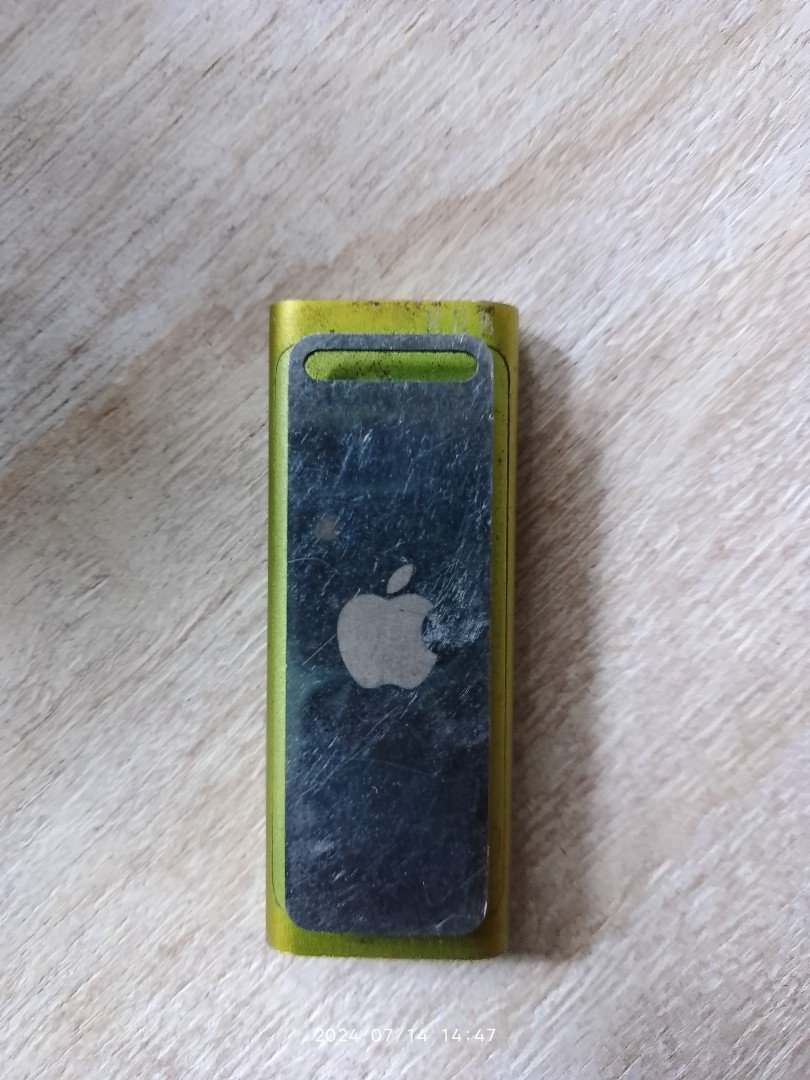
The year is 2024, and while smartphones dominate our pockets, there's still a quiet charm, a refreshing simplicity, in the humble iPod Shuffle. Maybe you've unearthed yours from a dusty drawer, or perhaps you've stumbled upon one in pristine condition. Whatever the reason, you're now holding a tiny, clip-on device designed for one thing: pure, unadulterated music. The only catch? Figuring out how to use and sync music with the iPod Shuffle 3rd Gen in a world that’s moved light years past dedicated MP3 players.
Don't fret. This comprehensive guide isn't just about technical steps; it's about rekindling that joy of a perfectly curated, screen-free soundtrack. We're diving deep into making your iPod Shuffle 3rd Gen sing again, covering both the classic iTunes route and fantastic alternatives for those who prefer to bypass Apple's ecosystem.
At a Glance: Getting Your iPod Shuffle 3rd Gen Ready for Tunes
- Two Main Paths: You can transfer music using Apple's iTunes software or opt for free third-party alternatives.
- USB Connection Required: The iPod Shuffle lacks Wi-Fi; all transfers happen via a USB cable connected to your computer.
- iTunes Warning: Connecting your Shuffle to an iTunes library it hasn't synced with before will erase all existing music on the device. Proceed with caution.
- Third-Party Flexibility: Software like CopyTrans Manager, MediaMonkey, and Winamp offer more control and can be less resource-intensive than iTunes.
- Format Matters: Ensure your music files are in compatible formats, primarily MP3 and AAC.
- It Still Works: Despite being discontinued in 2017, your 3rd Gen Shuffle is still perfectly capable of holding and playing your favorite tracks.
Rediscovering Your Pocket-Sized Playlist Partner
Ah, the iPod Shuffle 3rd Generation. Released in 2009, it was a fascinating evolution for the smallest iPod, embracing a completely button-free design and introducing "VoiceOver" to announce song titles and artists. This little aluminum marvel redefined minimalism, designed for those who just wanted to clip it on and go – no distractions, just music.
Fast forward to today, and while the tech landscape has changed dramatically, the core appeal of the Shuffle remains: simplicity, portability, and excellent battery life. But getting your carefully chosen tracks onto this vintage gem can feel like a digital archeological dig. Whether you’re a long-time Apple enthusiast or someone who prefers open-source solutions, we’ve got you covered.
Your Two Paths to a Tuneful Shuffle: iTunes vs. Alternatives
When it comes to loading music onto your iPod Shuffle 3rd Gen, you essentially have two main highways to choose from. Each has its own merits, quirks, and a crucial warning you need to heed before you begin your journey.
The Official Route: iTunes
For years, iTunes was the undisputed gatekeeper for all iPods. It’s Apple’s official media management software, designed to seamlessly organize your music, videos, and podcasts, and then push them to your devices. If you already have a well-organized iTunes library, or if you prefer sticking with Apple’s ecosystem, this might be your preferred path.
The Independent Way: Free Third-Party Software
Many users find iTunes to be a bit of a behemoth – large, sometimes slow, and occasionally overly complex for just transferring music. This is where third-party software shines. These alternatives often offer a leaner experience, direct file management, and can bypass some of the ecosystem restrictions that come with iTunes. They’re particularly appealing if you’re using a Windows PC or just want more control over your files.
The Data Eraser: A Key iTunes Caveat
Before we dive into the "how-to" for either method, there's a vital piece of information you absolutely must know, especially if you're considering the iTunes route:
Connecting your iPod Shuffle 3rd Gen to an iTunes library it has never been synced with before will result in all existing music on the device being erased.
This is a built-in security feature by Apple, designed to prevent unauthorized content transfers. If you have cherished songs on your Shuffle that aren't backed up elsewhere, using a new iTunes library could wipe them clean. If you're in doubt, consider using a third-party tool first, as they often allow you to add music without erasing what's already there.
Now, let's explore your options in detail.
Method 1: Syncing Your Shuffle Without iTunes (Bypass the Apple Ecosystem)
For many, iTunes can feel like bringing a battleship to a canoe race when all you want to do is put a few songs on your tiny iPod. Its size, complexity, and deep integration into the Apple ecosystem aren't for everyone. Thankfully, several excellent free software alternatives allow you to manage and transfer music to your iPod Shuffle with greater independence and often a much lighter footprint on your system.
The core challenge these tools address is Apple's traditionally closed ecosystem and the Shuffle's reliance on a USB connection for all data transfers. By using these programs, you're gaining flexibility without sacrificing functionality.
General Steps for "Without iTunes" Method
While each software has its unique interface, the overall process typically follows these straightforward steps:
- Download & Install: Choose one of the recommended software options below and download its installer from the official website. Follow the on-screen prompts to install it on your computer.
- Connect Your iPod: Use your iPod Shuffle's USB cable to connect it to an available USB port on your computer. Ensure your computer recognizes the device. Windows users, in particular, might see a brief driver installation process.
- Add/Sync Music: Open the chosen software. You'll navigate its interface to add music files (individual songs or entire folders) from your computer to a designated area for your iPod. Once selected, you'll initiate the transfer or sync process.
- Wait for Transfer: The time it takes will depend on how many songs you're transferring and the speed of your computer. You’ll usually see a progress bar.
- Safely Disconnect: Once the transfer is complete, always safely eject your iPod Shuffle from your computer (usually via an icon in the system tray on Windows or by dragging the device to the Trash on Mac) before physically unplugging it. This prevents data corruption.
Deep Dive into Recommended Free Software Alternatives
Here are some of the top picks for managing your Shuffle outside of iTunes:
1. CopyTrans Manager: The User-Friendly Choice
CopyTrans Manager is a fantastic, lightweight tool that feels intuitive right from the start. It’s designed specifically for managing iPods and iPhones, focusing on ease of use.
- Compatibility: Works seamlessly with Windows. (Note: While previous versions supported Mac, current primary offerings focus on Windows, but it's worth checking their site for updated Mac compatibility or alternatives from them).
- Key Features:
- Drag-and-drop simplicity for adding music from your computer or external drives.
- Create, organize, and edit playlists directly on your iPod.
- Effortlessly delete songs or entire playlists.
- Unique ability to transfer music from your iPod to your computer, which iTunes often restricts.
- How to Use CopyTrans Manager:
- Install & Connect: Download and install CopyTrans Manager. Connect your iPod Shuffle to your computer via USB. Open the CopyTrans Manager application.
- Add Music: In the CopyTrans Manager window, locate the "Add Music" button (often a green plus sign). Click it, then navigate your computer's folders to select the songs or entire music folders you wish to add. Alternatively, you can drag and drop files directly from your desktop or a folder into the CopyTrans Manager window.
- Apply Changes: Once you've added all your desired music, go to the "Devices" tab (or look for a similar option if the interface has updated) and ensure your iPod Shuffle is selected. Then, click the "Apply" or "Update" button to begin the actual transfer to your Shuffle.
- Disconnect: After the transfer completes, safely eject your iPod from your computer.
2. MediaMonkey: The Robust Media Organizer
MediaMonkey is more than just an iPod transfer tool; it's a comprehensive media management system for music, video, and podcasts. If you have a large, sprawling music library that needs serious organization, MediaMonkey is an excellent choice.
- Compatibility: Available for Windows, with a companion app for Android that can sync with the desktop version (though this doesn't directly pertain to iPod Shuffle).
- Key Features:
- Powerful automatic organization and tagging features, cleaning up messy libraries.
- Supports a vast array of audio formats, including MP3, AAC, FLAC, OGG, and more.
- Advanced playlist management, including auto-playlists based on criteria.
- Podcast management and syncing capabilities.
- How to Use MediaMonkey:
- Install & Connect: Download and install MediaMonkey. Connect your iPod Shuffle to your computer. Open the MediaMonkey application. It might take a moment to scan your library and recognize your iPod.
- Add Music to Library: Before syncing, ensure the music you want on your Shuffle is in MediaMonkey’s library. Navigate to the "Files" tab, then click "Add Folder" or "Add File" to import music from your computer.
- Sync to iPod: Once your music is in MediaMonkey's library, find your iPod Shuffle listed under "Devices" in the left-hand pane. Select it. In the main window, you'll see options for syncing. You can choose to sync your entire library, selected playlists, or specific tracks. Click the "Sync" button (often with an arrow icon) to begin the transfer.
- Disconnect: Once the sync is finished, safely eject your iPod Shuffle from your computer.
3. Winamp: The Classic Player's Comeback (Windows Only)
Winamp is a name that evokes nostalgia for many PC users. While it’s primarily known as a powerful and customizable media player, it also offers functionality for syncing with portable devices, including older iPods.
- Compatibility: Strictly for Windows operating systems.
- Key Features:
- Classic media playback with extensive customization options (skins, plugins).
- Import and manage your music library.
- Create and manage playlists.
- Ability to export music to connected portable devices.
- How to Use Winamp:
- Install & Connect: Download and install Winamp. Connect your iPod Shuffle to your computer. Open Winamp.
- Add Music to Library: Go to the "Media Library" section within Winamp. Click "Add Media" (often a plus icon or an option in the File menu) to select songs or folders from your computer to add them to Winamp's library.
- Send to Device: Locate your iPod Shuffle under the "Devices" section in the left pane of Winamp. Drag and drop the desired songs, albums, or playlists from your Winamp Media Library directly onto your iPod Shuffle icon. Alternatively, with your iPod selected, look for a "Send to Device" or "Sync" option.
- Disconnect: After the transfer is complete, safely eject your iPod Shuffle before unplugging it.
Best Practices for Smooth Music Transfer (Without iTunes)
To ensure your music transfer goes off without a hitch, keep these tips in mind:
- Format Compatibility is Key: Most of these programs, and the iPod Shuffle itself, are primarily designed for MP3 and AAC audio files. While some software might support other formats (like FLAC or WAV), converting them to MP3 or AAC (if not already) before transferring will generally lead to the most reliable playback on your Shuffle. Check your chosen software's documentation for specific format support.
- Organize Your Music Library First: A little pre-transfer tidying goes a long way. Make sure your music files are in logical folders on your computer. This makes it much easier to select and add them to your chosen software, streamlining the entire process.
- Consider Batch Transfers for Large Libraries: If you have thousands of songs, transferring them all at once might be slow or even cause your computer to temporarily hang. Try transferring your music in batches – perhaps by album, artist, or playlist – to ensure a smoother experience.
- Keep Your Software Updated: Developers regularly release updates that improve compatibility, fix bugs, and sometimes even add new features. Regularly checking for and installing updates for your chosen transfer software can prevent unforeseen issues.
Safety and Compatibility Notes
Using reputable free software alternatives for your iPod Shuffle is generally safe. These programs have been around for years and are trusted by countless users. Since the iPod Shuffle was discontinued in 2017, using alternative software will not void any warranty, as it no longer carries one.
While primarily designed for music, some of these robust tools might also support podcasts or audiobooks. Always consult the specific software's documentation to confirm. In terms of system requirements, you’ll need a computer with a functioning USB port, a compatible operating system (Windows or macOS), and an iPod formatted for that specific OS.
Method 2: Plugging Into Apple's Ecosystem with iTunes
For those who are comfortable with iTunes, or if you already have a well-established iTunes library, this remains a straightforward path to load music onto your iPod Shuffle 3rd Gen. iTunes provides robust organization and sync features, but remember our earlier warning: connecting your Shuffle to an unfamiliar iTunes library will erase all existing music on the device.
Let’s explore how to get your tunes synced using iTunes.
Ensuring a Smooth iTunes Experience (Pre-Sync Check)
Before you begin, a couple of quick checks can prevent headaches:
- Update iTunes: Ensure you're running a reasonably recent version of iTunes. While the iPod Shuffle 3rd Gen is older, newer versions often have better compatibility and stability.
- Consolidate Your Library (Optional): If your music files are scattered across your computer, consider using iTunes' "Consolidate Files" feature (under File > Library > Organize Library) to gather all your music into the iTunes Media folder. This makes backups easier.
Option A: Syncing Your Entire Music Library (or Specific Playlists)
This is the most common method, allowing iTunes to manage what's on your Shuffle based on your library settings.
- Open iTunes & Connect: Launch iTunes on your computer. Plug your iPod Shuffle 3rd Gen into a USB port using its cable.
- Select Your iPod: Once iTunes recognizes your Shuffle, an iPod icon will appear near the top-left corner of the iTunes window, next to the Library dropdown. Click on this icon.
- Navigate to Music Settings: In the left sidebar under "Settings," click on "Music."
- Enable Sync Music: In the main pane on the right, you'll see a checkbox labeled "Sync Music." Check this box.
- Choose Your Sync Preference:
- "Entire Music Library": If you want to put all your music from iTunes onto your Shuffle (up to its capacity), select this option.
- "Selected playlists, artists, albums, and genres": This gives you granular control. After selecting it, check the specific items you want to include in the boxes below. You can also check "Automatically fill free space with songs" if you want iTunes to pick random tracks after your selections.
- Apply Changes: Click the "Apply" button located in the lower-right corner of the iTunes window. iTunes will begin syncing your selected music to your iPod Shuffle.
- Wait & Disconnect: Allow the transfer to complete. You'll see a progress bar. Once finished, click the "Eject" icon (a small upwards arrow with a line underneath) next to your iPod's name in iTunes before physically unplugging your Shuffle.
Option B: Dragging & Dropping Individual Tracks
If you prefer to hand-pick a few songs or albums and don't want iTunes to manage your entire device automatically, this method offers more direct control.
- Open iTunes & Connect: Launch iTunes and connect your iPod Shuffle.
- Access Your Library: Click the "Music" drop-down menu in the upper-left corner of iTunes (it might say "Library" or "Songs") and select a "Library" option like "Songs" or "Albums" to view your music collection.
- Locate Your iPod: In the left sidebar, under "Devices," you should see your iPod Shuffle listed.
- Drag & Drop: Find the individual songs or entire albums you wish to transfer in your iTunes library. You can select multiple items by holding down the
Ctrlkey (Windows) orCommandkey (Mac) while clicking. Once selected, drag these items directly onto your iPod's icon under "Devices" in the left pane. - Release & Transfer: Release the mouse button. iTunes will immediately start uploading the selected music to your iPod.
- Wait & Disconnect: Wait for the transfer to finish. Then, click the "Eject" icon in iTunes and safely disconnect your Shuffle.
Option C: Letting iTunes Autofill Your Shuffle (Randomized Playlists)
This feature is perfect for the Shuffle's design philosophy: random music discovery. iTunes will intelligently fill your Shuffle's available space with a selection of tracks from your library, often based on criteria you set.
- Open iTunes & Connect: Open iTunes and connect your iPod Shuffle.
- Select Your iPod: Click the iPod Shuffle icon near the top-left.
- Go to Summary: In the left sidebar, under "Settings," click on "Summary."
- Enable Manual Management: Scroll down to the "Options" section. Here, make sure the checkbox next to "Manually manage music and videos" is checked. This allows you to use the Autofill feature.
- Access Autofill Settings: In the left sidebar, under "On My Device," click "Music." You’ll now see an "Autofill From" pop-up menu at the bottom-left of the iTunes window.
- Configure Autofill: Select a music source from the "Autofill From" dropdown (e.g., your entire music library, a specific playlist). Click the "Settings…" button next to it to fine-tune how Autofill works. You can choose options like:
- "Replace all items when Autofilling": This wipes existing songs and replaces them.
- "Choose items randomly": For true randomness.
- "Choose higher rated items more often": If you rate your music.
- "Reserve space for disk use": If you need to keep some space free on the Shuffle for other files (though less common for a music-only device).
- Click "OK" once you’ve adjusted your preferences.
- Initiate Autofill: Click the "Autofill" button. iTunes will begin populating your Shuffle with songs based on your settings.
- Wait & Disconnect: Allow the process to complete. Finally, click the "Eject" icon in iTunes and disconnect your iPod Shuffle.
iTunes Sync Best Practices
- Always Eject Safely: Just like with any USB device, always use the eject function in iTunes before unplugging your iPod Shuffle. This prevents data corruption and ensures all transfer processes are fully terminated.
- Backup Your iTunes Library: If your iTunes library is the primary home for your music collection, back it up regularly. Losing your library means losing the source for your Shuffle's music.
- Handle Duplicates: iTunes can sometimes be prone to duplicate entries if you re-add folders. Keep an eye out for these to avoid clutter and wasted space on your Shuffle.
Troubleshooting Common Syncing Snags
Even with the best intentions, technology can sometimes be finicky. If you're running into issues while trying to get music onto your iPod Shuffle 3rd Gen, here are some common problems and their solutions:
- iPod Not Recognized by Computer/Software:
- Check USB Connection: Try a different USB port on your computer. Ensure the USB cable is fully inserted and not damaged.
- Restart Everything: Sometimes a simple restart of your computer and the iPod Shuffle (by switching it off and on) can resolve connectivity issues.
- Try Another Cable: USB cables can go bad. If you have another compatible cable, try using that.
- Update Drivers (Windows): For Windows users, sometimes the Apple Mobile Device USB Driver can become corrupted or outdated. You might need to reinstall or update it through your Device Manager.
- Reinstall Software: If using third-party software, try a clean reinstall. For iTunes, a full reinstall can sometimes fix deeper issues.
- Music Not Playing or Corrupted Files:
- Format Check: Double-check that your music files are in compatible formats (MP3 or AAC). Other formats might transfer but won't play.
- Source File Integrity: Play the original music file on your computer. If it's corrupted there, it will be corrupted on the Shuffle. Re-obtain the file if necessary.
- Re-sync: Delete the problematic songs from your Shuffle and re-transfer them.
- "iPod is Synced with Another iTunes Library" Error:
- This is the big one we warned about. iTunes is telling you that connecting to this library will erase your Shuffle. Your options are:
- Proceed, knowing all existing music will be wiped and replaced with music from the current iTunes library.
- Cancel and use a third-party software (like CopyTrans Manager) which generally allows adding music without erasing existing content.
- Locate the original computer/iTunes library it was synced with.
- Slow Transfers:
- USB Port Speed: Ensure you're using a USB 2.0 or 3.0 port (typically blue inside) if your computer has them. Older USB 1.1 ports are much slower.
- Computer Activity: Close unnecessary programs on your computer that might be consuming CPU or disk resources during the transfer.
- Batch Transfer: For very large libraries, break down the transfer into smaller batches rather than one huge sync.
- Insufficient Space on iPod:
- The iPod Shuffle 3rd Gen typically has 2GB or 4GB of storage. This can fill up quickly with high-quality audio files.
- Reduce Bitrate: If you're using high-bitrate (e.g., 320kbps) MP3s, you might consider converting some to a slightly lower (e.g., 192kbps or 256kbps) bitrate to save space, though this reduces audio quality slightly.
- Remove Unwanted Tracks: Delete songs or playlists you no longer listen to, either via iTunes or your chosen third-party software, to free up space.
Keeping Your Shuffle Happy & Humming (Maintenance Tips)
To ensure your iPod Shuffle 3rd Gen continues to deliver your favorite tunes for years to come, a little care goes a long way.
- Battery Life: Like all old electronics, the battery in your Shuffle will degrade over time. To maximize its life, try not to let it completely drain before recharging. Store it with some charge (around 50%) if you plan not to use it for a long period.
- Cleaning: Use a soft, lint-free cloth (like a microfiber cloth) to gently wipe down your Shuffle. Avoid harsh chemicals or abrasive materials that could scratch its aluminum casing or delicate control surface (if any, though the 3rd Gen had most controls on the headphone cord).
- Firmware Updates (via iTunes): While major updates are long past, if you ever encounter persistent issues, connecting your Shuffle to iTunes and checking for a "Restore" or "Update" option on the Summary tab might sometimes help. A restore will wipe the device and reinstall its operating system, essentially giving it a factory reset.
- Storing Safely: When not in use, store your Shuffle in a dry, temperate place, away from extreme heat, cold, or direct sunlight. Clipping it to a bag or leaving it exposed to dust can cause damage over time.
Your Shuffle, Your Sound: A Final Word
The iPod Shuffle 3rd Gen, with its minimalist design and singular focus, remains a testament to Apple's ingenuity and a beloved companion for countless music lovers. In a world of notifications and endless scrolling, it offers a refreshing, distraction-free way to enjoy your favorite tracks. Getting music onto it might require a few more steps than dragging a file to a cloud service, but the reward is a truly personal, pocket-sized soundtrack.
Whether you've chosen the tried-and-true iTunes path or embraced the flexibility of third-party alternatives, you're now equipped to fill your tiny music player with the sounds that move you. So go ahead, clip it on, hit play, and rediscover the simple joy of your own private concert, wherever you are. To learn more about this iconic device and its place in history, be sure to Explore the iPod Shuffle 3rd Generation. Enjoy the music!